WHAT YOU WILL LEARN? 1- Including the Kernel Files in Jetson OS Image 2- Installing the Jetson OS 3- Installing the Jetson SDK Components
In this tutorial, we will install JetPack-5.1 for DSBOARD-ORNX. First, we will include our BSP files in Jetson OS image. Then, we will install the Jetson OS into the DSBOARD-ORNX. Finally, we will install the Jetson SDK components into it.
Info: In this release, the M.2 Key-M 2230 slot (next to the M.2 Key-E slot) will not work. It will be fixed to the next release.
Attention: In this guide, the NVIDIA SDK Manager steps are followed as AGX Orin module which uses the same architecture (t23x) with Orin NX. It will be updated after the NVIDIA SDK Manager will get the Orin NX support in it.
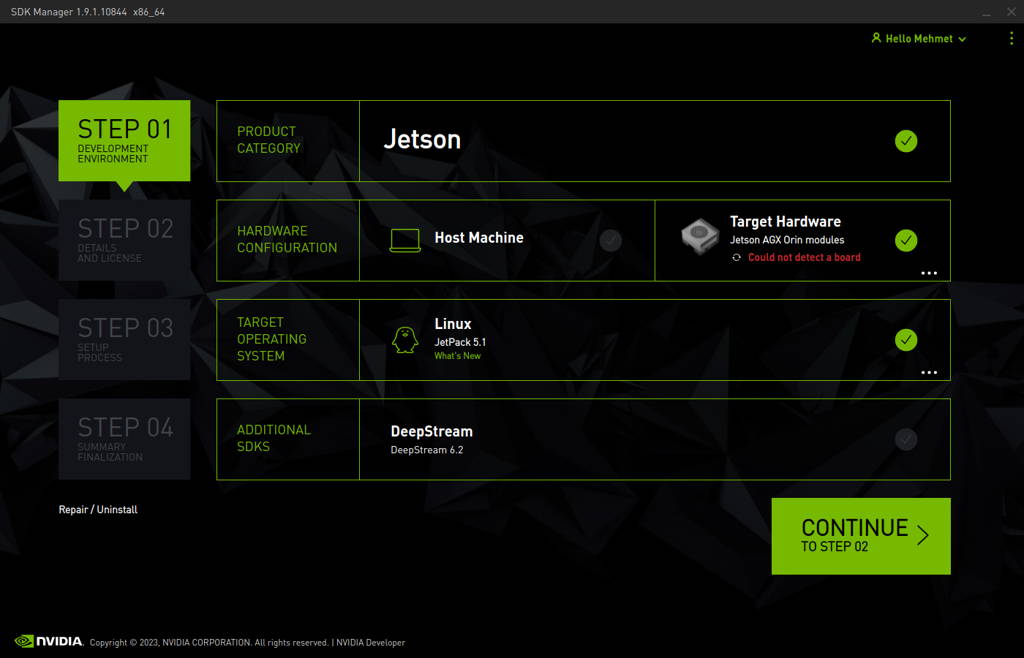
Open the NVIDIA SDK Manager. Select “JetPack 5.1” for Target Operating System and “Jetson AGX Orin modules” for Target Hardware (The “Host Machine” components are not required). Then, continue to Step 2.
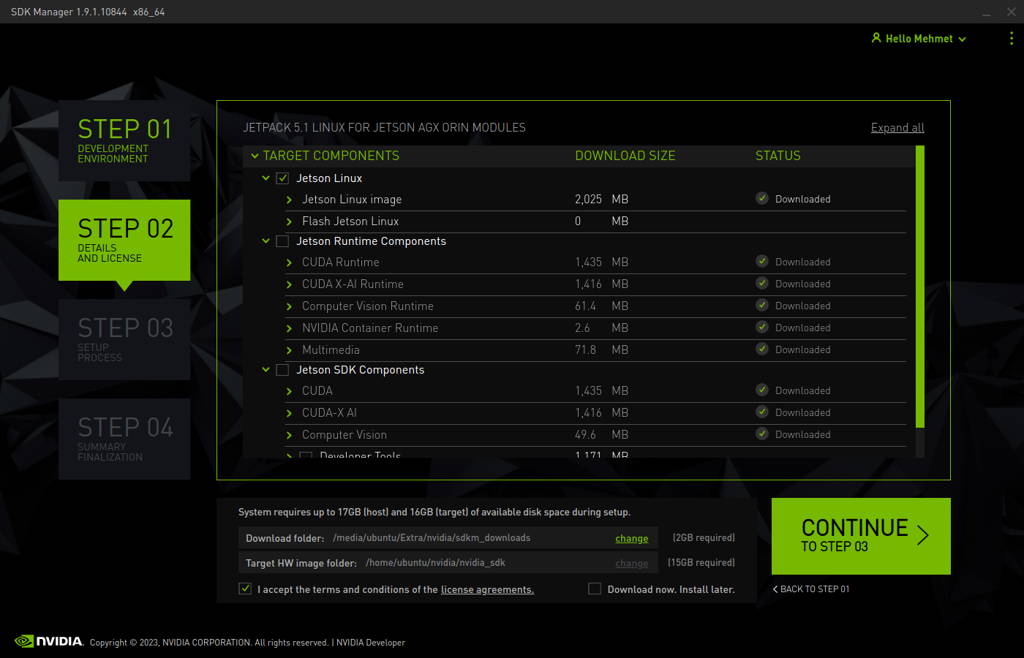
Choose only “Jetson Linux”, accept the terms & conditions and continue to Step 3.
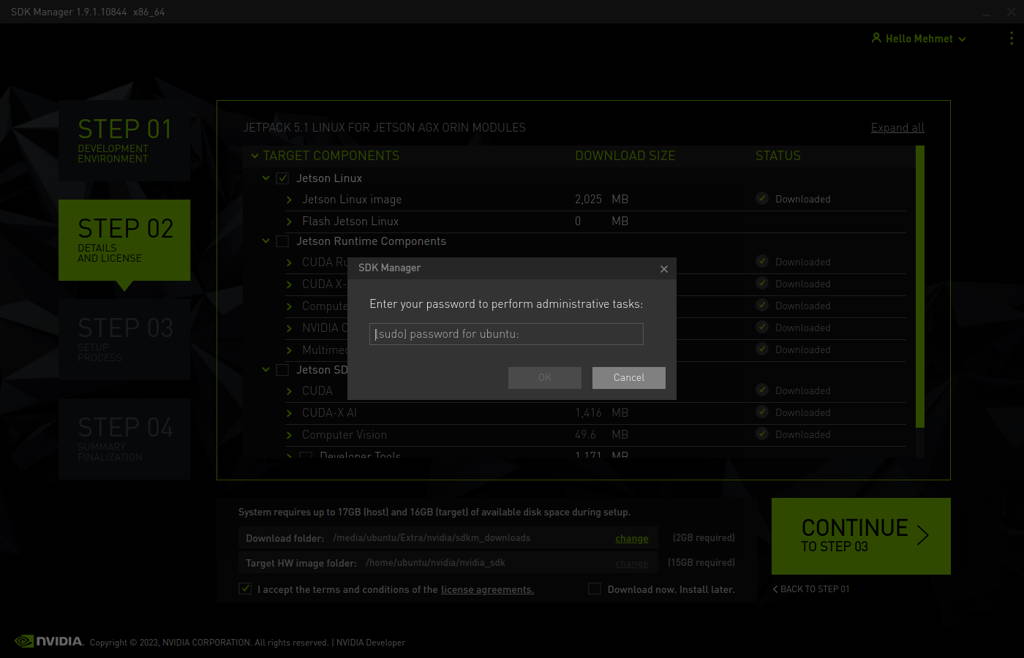
The SDK Manager will ask the username’s password. Fill it and continue.
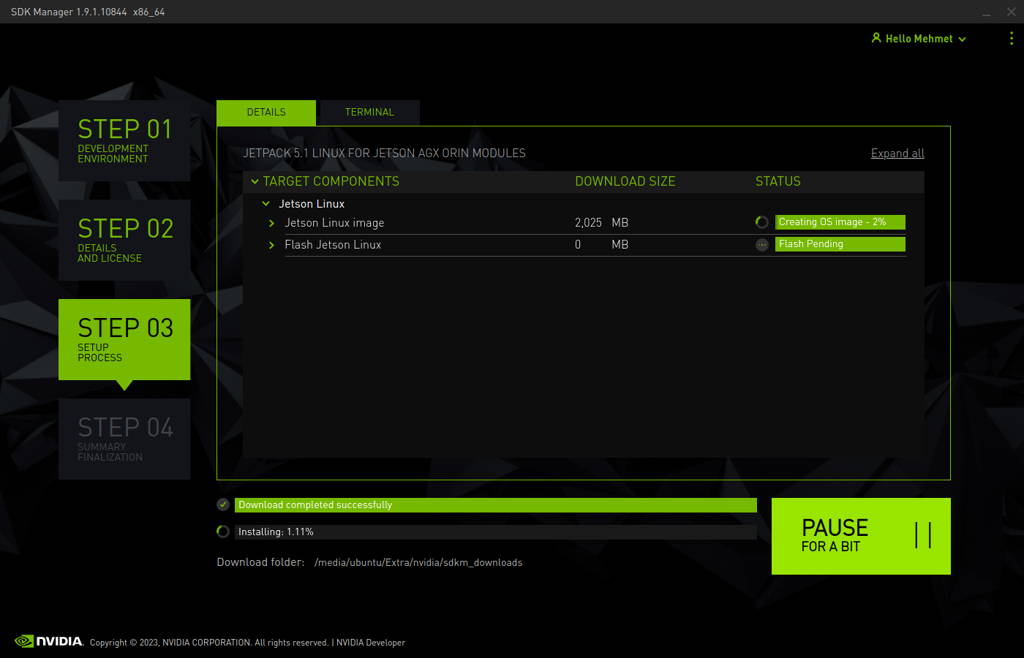
After the Jetson OS has created, the SDK Manager asks the Jetson module’s flashing style. Just skip it and exit from the SDK Manager.
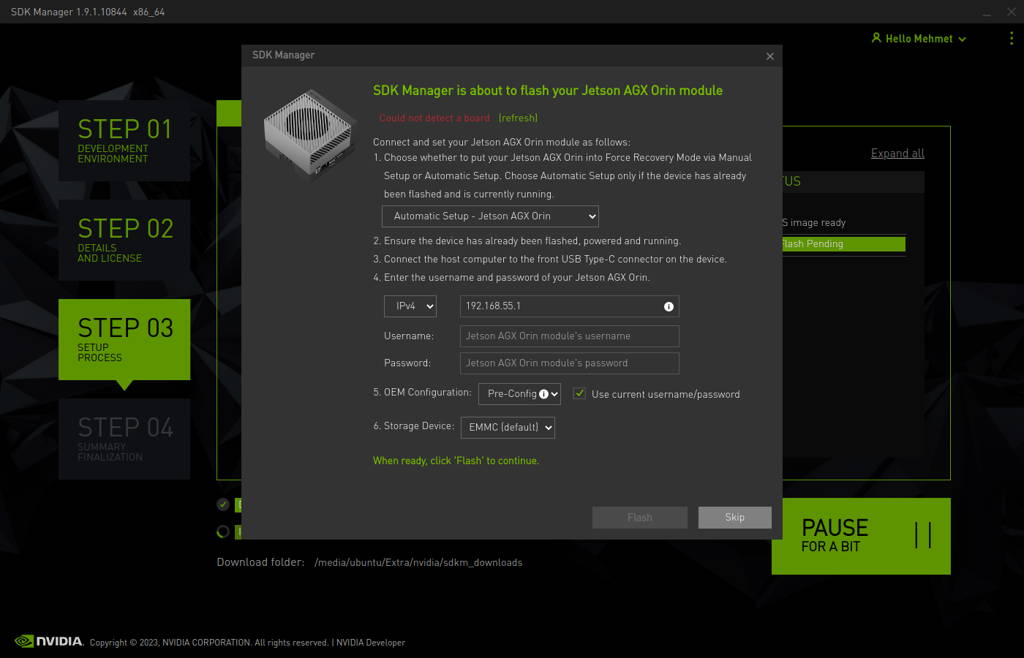
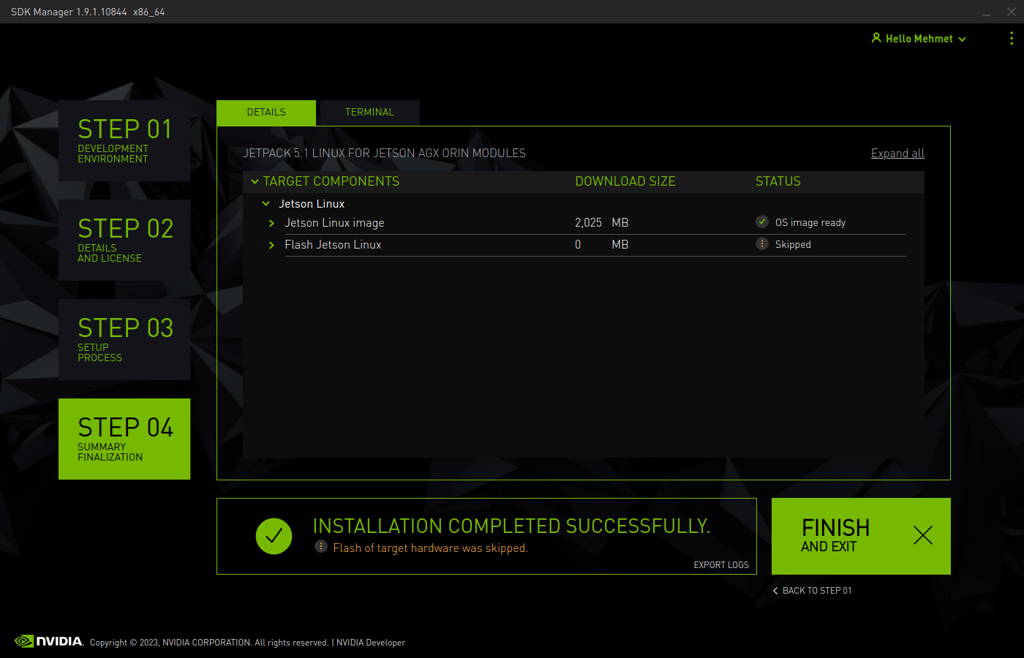
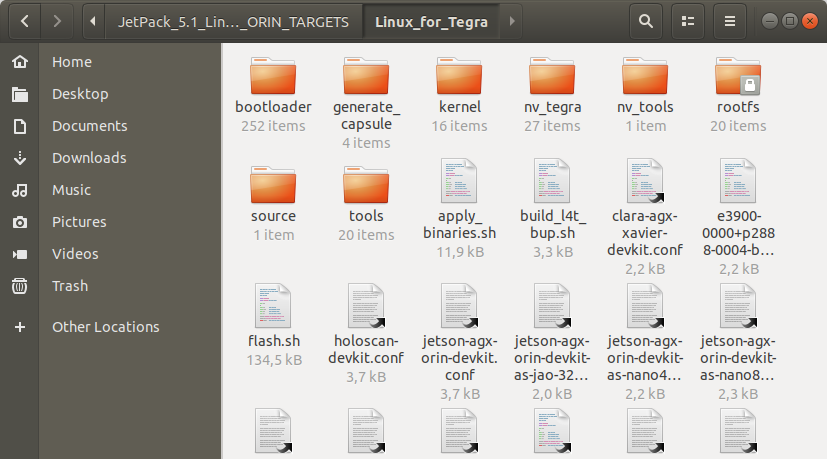
Open the target HW image folder. (~/nvidia/nvidia_sdk/JetPack_5.1_Linux_JETSON_AGX_ORIN_TARGETS/Linux_for_Tegra/)
Download the BSP files from GitHub link and extract it:
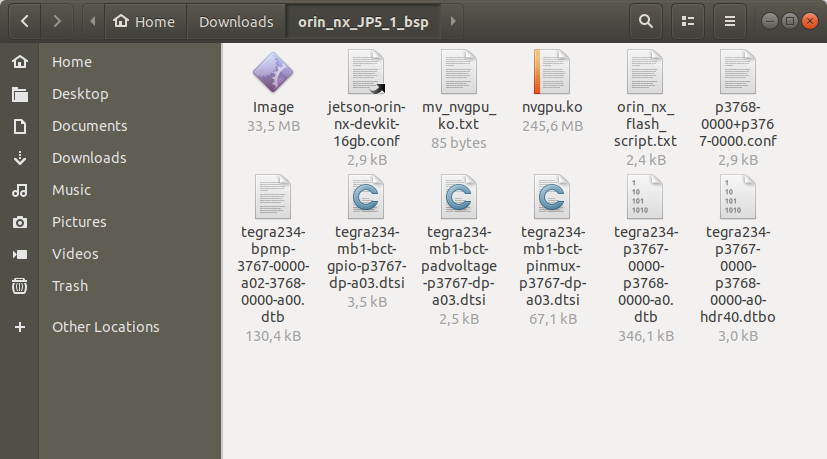
Copy the “jetson-orin-nx-devkit-16gb.conf" and "p3768-0000+p3767-0000.conf” files from the extracted folder to the current folder.