1- How to change the Filesystem Root to internal storage?
2- How to format the external storage?
In this guide we will change the Filesystem Root storage from external to internal storage (eMMC). Then, we will format the external storage.
Sometimes we need to re-flash (or upgrade) our Jetson modules. Using an external storage as Filesystem Root cause a few problems after doing it. We have to follow these steps below to avoid these problems.
This guide prepared for SSD mounted system but you can follow the same steps in your SD card mounted system.
Attention: If the Jetson module does not use its external storage as Filesystem Root, you don’t need to erase it.
If you have follow one of blog-posts below to transferring the Filesystem Root to your external storage, you can just modify the boot/extlinux/extlinux.conf files located on both storages.
• https://www.forecr.io/blogs/bsp-development/change-root-file-system-to-sd-card-directly
• https://www.forecr.io/blogs/bsp-development/change-root-file-system-to-m-2-ssd-directly
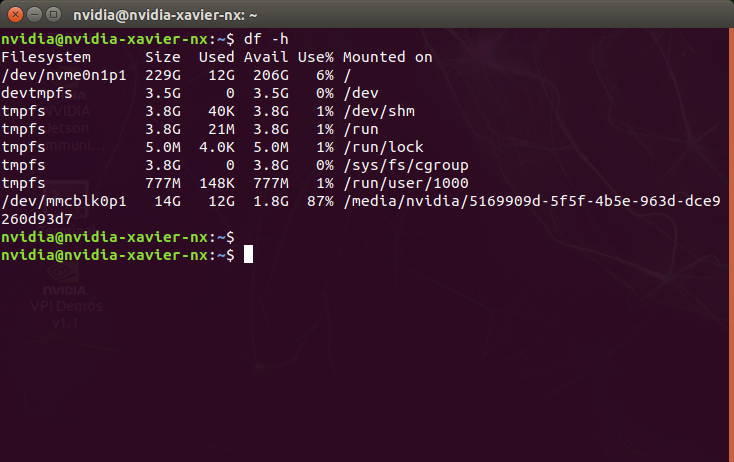
First, open a terminal on your Jetson. Then, type "df -h".
As you can see that our SSD connected on "/" (as Filesystem Root). If you are using an SD card, you should see “/dev/mmcblk1p1” device mounted as root (/).
At this point we need to change two extlinux.conf files which located on boot/extlinux folders both eMMC & SSD.
We started to modify the file at the SSD. Type this command to open it:
sudo gedit /boot/extlinux/extlinux.conf


As you can see that, the "root" parameter set as "/dev/nvme0n1p1". (If you are using an SD card, you should see “/dev/mmcblk1p1”). You need to change it as "/dev/mmcblk0p1".
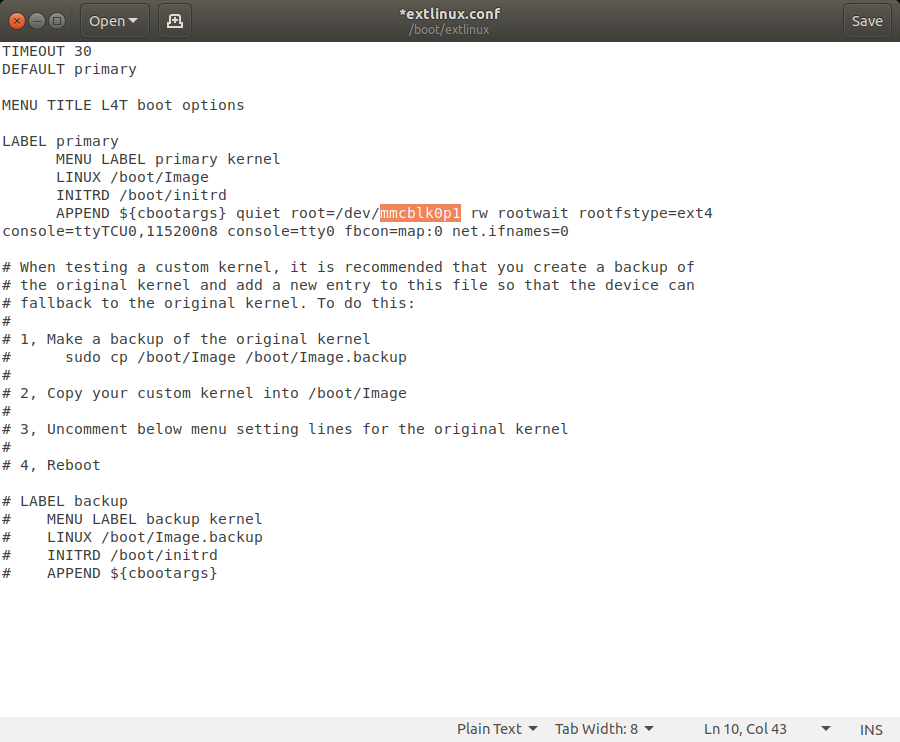
Then, save it and close.